
MyFrontier
Frontier - A Verizon companyCommunication
4.614.00K Reviews
- Version
- 4.35.0
- Installs
- 1.00M
- Age Rating
- Everyone
Screenshots
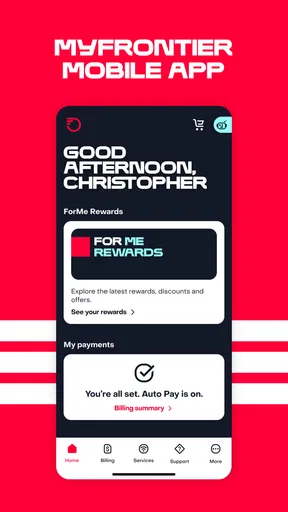
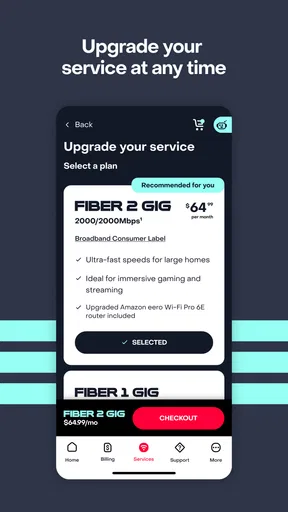
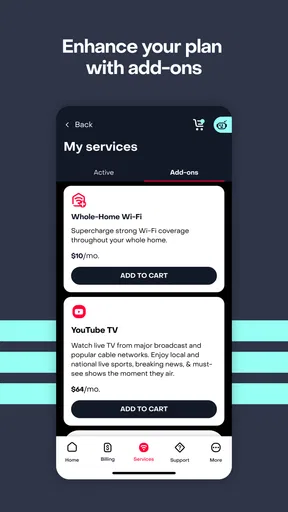
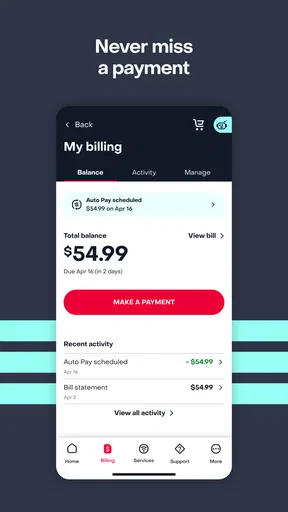
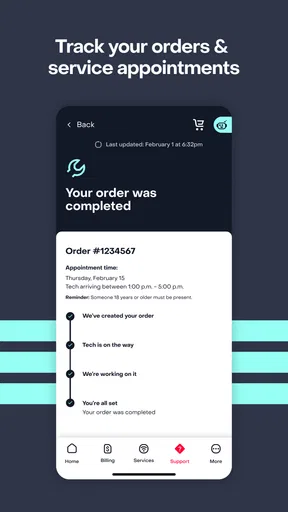
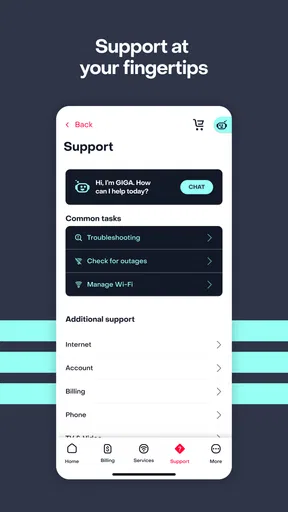
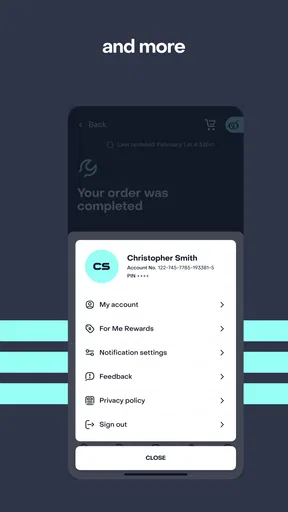
Our Review of MyFrontier
 Analysis by Appyee
Managing an internet account from a phone sounds simple until you need to check a bill, change a service detail, or understand why something is not working. I spent time with MyFrontier as a communication app from Frontier - A Verizon company, and my overall impression is that it is most useful as a customer-account tool rather than as a general communications app. That distinction matters: it is designed around your Frontier relationship, not around messaging friends, making calls, or replacing your everyday email.
The app is free and aimed at everyone, which makes sense for a household account tool. It has been available since May 14, 2015, and the current version is 4.33.1 for devices running Android 7.0 or later. Its average rating is 4.5 from around 86 thousand ratings, with about 14 thousand written reviews and over 1 million installs. Those figures suggest that it has become a familiar companion for many Frontier customers, although popularity alone is not a reason to hand over trust. For me, the more important question is whether the app gives account holders understandable choices and enough control when handling service and billing information.
Where MyFrontier fits in everyday account management
The clearest way to understand this app is to see it as a mobile front door to your Frontier account. Instead of opening a browser, finding the provider’s website, signing in, and navigating through a desktop-style layout, you can use the app when you are already holding your phone. That convenience is particularly noticeable when you are away from home or trying to deal with an account question while doing something else.
I would recommend it first to people who already use Frontier services and want a quicker way to stay connected to their account. It is also practical for households where one person handles the internet bill but other people need occasional visibility into service information. A phone-based account tool can reduce the temptation to postpone small tasks until they become urgent, especially when the only alternative feels like digging through old emails or searching a browser.
However, I would not install it simply because it belongs to the communication category. The category can create the wrong expectation. MyFrontier is not a chat app, a video-calling service, or a replacement for your phone provider. If you are looking for a way to communicate with other people, you need a different kind of application. Its value depends almost entirely on whether you are a Frontier customer and whether mobile access to account controls is useful to you.
What I look for before trusting an account app
Account apps deserve a different standard from entertainment apps. They may sit close to billing details, service addresses, support interactions, and other information that can identify a household. I therefore judge MyFrontier less by visual polish and more by whether the experience keeps me oriented: why the app needs me to sign in, what action I am about to take, and whether I can review a choice before confirming it.
Frontier - A Verizon company is clearly identified as the developer, which gives the app a direct connection to the service relationship it manages. That is preferable to an unofficial utility that asks users to enter provider credentials into an unfamiliar interface. Still, the developer name should not make users careless. I would download the app through the official Android or iOS store, check the developer identity before installing, and avoid entering credentials after following an unexpected message or a suspicious link.
The app’s age rating is Everyone, but that does not mean every account action is consequence-free. A family member using a shared phone may be able to open an already authenticated session, so the device itself becomes part of the security picture. I would use a screen lock, avoid leaving the account open on a borrowed device, and sign out when the phone is shared. Those habits are just as important as the app’s sign-in screen.
Account controls are more valuable than decorative features
When I use a provider app, I want it to shorten the path between a question and a useful answer. MyFrontier makes the most sense when I need to deal with account administration on the go. The practical benefit is not that it adds another icon to my home screen; it is that I can begin with the account instead of beginning with a search engine.
A realistic example is a move or a change in household routine. Imagine noticing an account issue while traveling, or realizing that a bill needs attention while you are away from your computer. The app can be the convenient place to start because the relevant relationship is already tied to your Frontier account. I would still read each screen carefully, particularly when a change could affect service, billing, or who has access to the account.
Another useful workflow is checking information before contacting support. I prefer to gather the account details I can see myself first, then contact the provider only when the issue needs assistance. That can make a support conversation more focused. It also helps separate a genuine service problem from a misunderstanding about an account setting or billing item.
My advice is to treat the app as a control panel, not as a place to tap quickly through prompts. Before confirming anything important, pause and check the account identity, the service involved, and the final wording on the screen. A small amount of attention is worthwhile when an action may affect a household connection.
Where privacy and data awareness matter most
The most sensitive moments are not necessarily the first launch or the sign-in itself. They are the moments when the app asks me to connect an action with an account, a payment responsibility, a service location, or a support request. That is when I want clear context. If a screen requests information, I should understand why it is relevant to the task rather than treating every prompt as routine.
I also pay attention to what appears on screen when the phone is unlocked. Account apps can expose more than users expect through remembered sessions, notifications, or previews. I would review notification behavior at the operating-system level and consider hiding sensitive previews on a shared or frequently visible phone. This is not a claim about a particular MyFrontier permission or data practice; it is a sensible user-controlled precaution for any app connected to a service account.
Permissions deserve the same careful treatment. I would approve only access that is clearly needed for a task and revisit permissions later if the operating system makes that easy. If an app asks for access that does not seem related to account management, I would stop and investigate rather than granting it automatically. The important point is to make a deliberate choice, not to assume that every request is harmless because the app is familiar.
For privacy-conscious users, the best approach is to combine the app with the platform’s privacy controls. Check the app’s store privacy information before installation, review the permission page on the phone, and keep the operating system updated. I would also avoid using the app on an unsecured public network when handling account information, even though the bigger risk in many everyday situations is careless credential sharing or an unlocked device.
User agency: convenience without losing the final say
Good account software should help me act without making decisions on my behalf. MyFrontier is most comfortable when I use it to inspect information, prepare for a task, and then choose what happens next. I do not want a provider app to turn a notification into an automatic commitment, and I would be cautious with any screen that presents a change as the obvious next step.
I recommend taking screenshots only when they do not expose sensitive information, and I would never send account images casually through group chats or social networks. For records, I prefer writing down the date and purpose of an important action rather than keeping a gallery full of account screens. That small habit gives me a useful trail while reducing the chance of exposing details if the phone is lost or shared.
There is also a household-access question. If several people need to manage service, the account owner should decide who gets access and what level of access is appropriate. Sharing one password may seem easy, but it weakens accountability and makes it harder to know who changed something. MyFrontier cannot solve every household policy problem by itself; users still need to agree on responsible access and protect the credentials.
I would also keep a browser alternative available. An app can be convenient, but a website may be easier when I need a larger view, want to compare several pieces of information, or am using a computer with better accessibility tools. The app should give me another route to the account, not force me into one route for every situation.
What feels less convenient in practice
The main limitation is built into the app’s purpose: its usefulness is narrow if I do not have a Frontier account. Even for customers, the app is not a universal solution for every service problem. Some situations require support, a technician, a browser, or a conversation with another person. A mobile account screen can organize the first step, but it cannot eliminate the complexity of the underlying service.
Authentication can also be a trade-off. Strong account protection is valuable, but repeated sign-ins can feel inconvenient when I am only trying to check one small detail. I would rather accept a little friction than leave a sensitive account permanently exposed, especially on a phone used by more than one person. The sensible balance is to use the device’s own security features and avoid treating convenience as a reason to weaken protection.
Another limitation is attention. Provider apps may present several account-related choices close together, and a user who is rushing can confuse checking information with changing something. My workaround is simple: I use the app for one clear task at a time, read the confirmation screen, and stop if the result does not match what I intended. That workflow is slower than blind tapping, but it gives me more control.
Compared with opening the Frontier website in a mobile browser, the app’s advantage is immediacy and a more focused account entry point. The browser remains better when I need a broad view or when I do not want another installed app. Compared with calling support, MyFrontier is better for routine self-service and checking information at my own pace, while a call is better for unusual problems that need explanation or human judgment. Compared with unofficial account-management tools, the official developer connection is the deciding reason I would choose this one, provided I install it from the legitimate store and keep my login private.
Who should use it, and who should skip it?
I think MyFrontier is a good fit for an existing Frontier customer who regularly checks account information from a phone, prefers self-service, or wants a convenient way to begin resolving routine questions. It is especially sensible for someone who is often away from a computer and does not want to rely on remembered browser tabs or old account emails.
I would skip it if I am not a Frontier customer, if I almost never manage the account myself, or if my phone has very limited storage and the browser already handles everything comfortably. I would also avoid making it the only option for an older family member who finds small mobile screens difficult. In that case, a larger browser display or direct assistance may be more appropriate.
People who are highly privacy-conscious should not automatically reject it, but they should use it intentionally. Install from the official store, verify the developer, review privacy details and permissions, protect the device, and avoid sharing credentials. Those steps do not require technical expertise, and they preserve the user’s ability to decide how the account is accessed.
My cautious verdict on MyFrontier
After using it as an account-management app, I see MyFrontier as a practical specialist rather than an app I would recommend to everyone. Its strongest quality is focus: it puts the Frontier relationship closer at hand when I need to deal with routine account tasks. The free price removes a barrier for customers who want that convenience, and the large install base and strong average rating indicate that many people find the approach useful.
My recommendation comes with boundaries. I would not confuse it with a general communication service, and I would not assume that an official provider app means I can ignore privacy choices or device security. The best experience comes from using it deliberately: open it for a specific account task, review what the screen is asking, confirm only what I intend, and keep the browser or support channel available when the app is not the right tool.
My final view is that MyFrontier earns a place on a Frontier customer’s phone when mobile account access genuinely saves time. It is not essential for every user, and it cannot replace judgment, but it offers a sensible route between doing nothing and contacting support for every small question. If you value direct control over routine account management and are willing to protect your login and review the app’s visible choices, I would recommend giving it a try.
Privacy and Permissions
See what permissions an app requests and how it handles your data.
- Photos/Media/Files
- read the contents of your USB storage, modify or delete the contents of your USB storage
- Storage
- read the contents of your USB storage, modify or delete the contents of your USB storage
- Camera
- take pictures and videos
- Microphone
- record audio
- Wi-Fi connection information
- view Wi-Fi connections
- Other
- view network connections, full network access, run at startup, prevent device from sleeping, Google Play license check
Verdict
Strengths of MyFrontier
- Quick access to billing, payments, and account details
- Supports convenient autopay and paperless billing management
- Helps monitor data usage and plan allowances on the go
- Provides service alerts and outage information in one place
- Useful for managing multiple Frontier services under one account
Limitations of MyFrontier
- Some features may require an active Frontier account and service
- App performance can vary depending on network connection quality
- Certain account changes may redirect you to the website
- Notifications may be delayed during outages or maintenance
- Support options may be limited compared with calling customer service
Similar Picks in This Category
View All
Google Messages
Google LLC4.6

Gmail
Google LLC4.1

Google Meet
Google LLC4.4

Google Chrome
Google LLC4.1

WhatsApp Messenger
WhatsApp LLC4.6

Carrier Services
Google LLC4.2
Frequently Asked Questions
What is MyFrontier and what can I use it for?
MyFrontier is Frontier Airlines’ official mobile app for managing your travel in one place. After signing in, you can review upcoming flights, check schedules, access booking information, manage your Frontier Miles account, and receive travel updates. The app is mainly designed for passengers who want quick access to airline services without repeatedly using the mobile website.
Can I book and manage Frontier flights through MyFrontier?
Yes, MyFrontier allows users to search for available flights, make reservations, and review existing bookings. Depending on the itinerary, you may also be able to select seats, add bags, purchase optional services, and modify certain trip details. Extra charges and restrictions can apply, so it is important to review the final price and fare conditions before confirming any changes.
Does MyFrontier provide mobile check-in and boarding passes?
The app supports the digital check-in process for eligible Frontier flights and can provide access to a mobile boarding pass once check-in is completed. Availability may depend on your itinerary, airport, passenger information, and any special travel requirements. Even when using the app, travelers should verify airport rules and arrive early enough to handle baggage or document checks.
Can MyFrontier send flight notifications and travel updates?
MyFrontier can help keep passengers informed about important trip details, including flight times, gate information, boarding reminders, and possible schedule changes. Notifications may require permission from your device settings and an active internet connection. Because airline information can change quickly, passengers should still check the app and airport displays regularly, especially on the day of departure.
Is MyFrontier free to download, and what should I know before installing it?
MyFrontier is generally free to download from the official Android or iOS app store, although using some airline services may involve ticket costs, baggage fees, seat charges, or other optional expenses. The app may require an account, personal travel information, internet access, and device permissions for notifications. Download it only from an official store to avoid unofficial or unsafe versions.
